
Are Digital Wallets Safe? How to Use Apple Pay and Google Wallet Securely
Digital wallets are generally safe when your phone, account, and screen lock are set up properly. With Apple Pay and Google Wallet, merchants don't see your actual card number the way they would with a physical card. The bigger risks come from a weak device lock, disabled location services, or an exposed account. This article covers iPhones and Android phones used for contactless payments, not cryptocurrency wallets or banking apps with similar features.
Key takeaways
- Contactless payments use a payment identifier instead of your card's actual number for each purchase.
- On iPhones running iOS 17.3 or later, Stolen Device Protection adds an extra layer of security.
- If your device is lost, Lost Mode suspends your Apple Pay cards and helps stop immediate use.
- Security is significantly reduced when your phone lacks a strong lock, active location services, or a protected account.
- Apple Pay and Google Wallet serve similar purposes, but recovery and lockout procedures depend on the platform and account you use.
How Digital Wallets Process Payments
Contactless payments use your phone as a go-between, not as an exposed copy of your card. The wallet app replaces sensitive card details with a payment identifier, then authorizes the transaction only after you confirm it with Face ID, Touch ID, a passcode, or an equivalent screen lock.
For Apple Pay, the company's documentation says Apple Pay receives the encrypted transaction and routes it to the correct destination instead of sending the card number shown on the physical card, according to the Apple Pay Security and Privacy Overview. That's the key security benefit: the merchant doesn't need to see your actual card number to complete the purchase.
For purchases made in apps or on websites, the process works in much the same way. The Apple Support states that Apple receives the encrypted transaction data and sends it to the appropriate developer or merchant. The practical benefit is clear: your card number is exposed less often, which can reduce the potential impact of a data breach compared with repeatedly entering the physical card number.
The device itself matters, too. Apple explains that components such as the Secure Enclave help protect the data and keys used during payment, keeping the digital wallet separate from the rest of the system. For users, that means security doesn't rest on the app alone. It comes from the combination of hardware, software, and authentication.
What changes between Apple Pay, Google Wallet, NFC, and the payment terminal
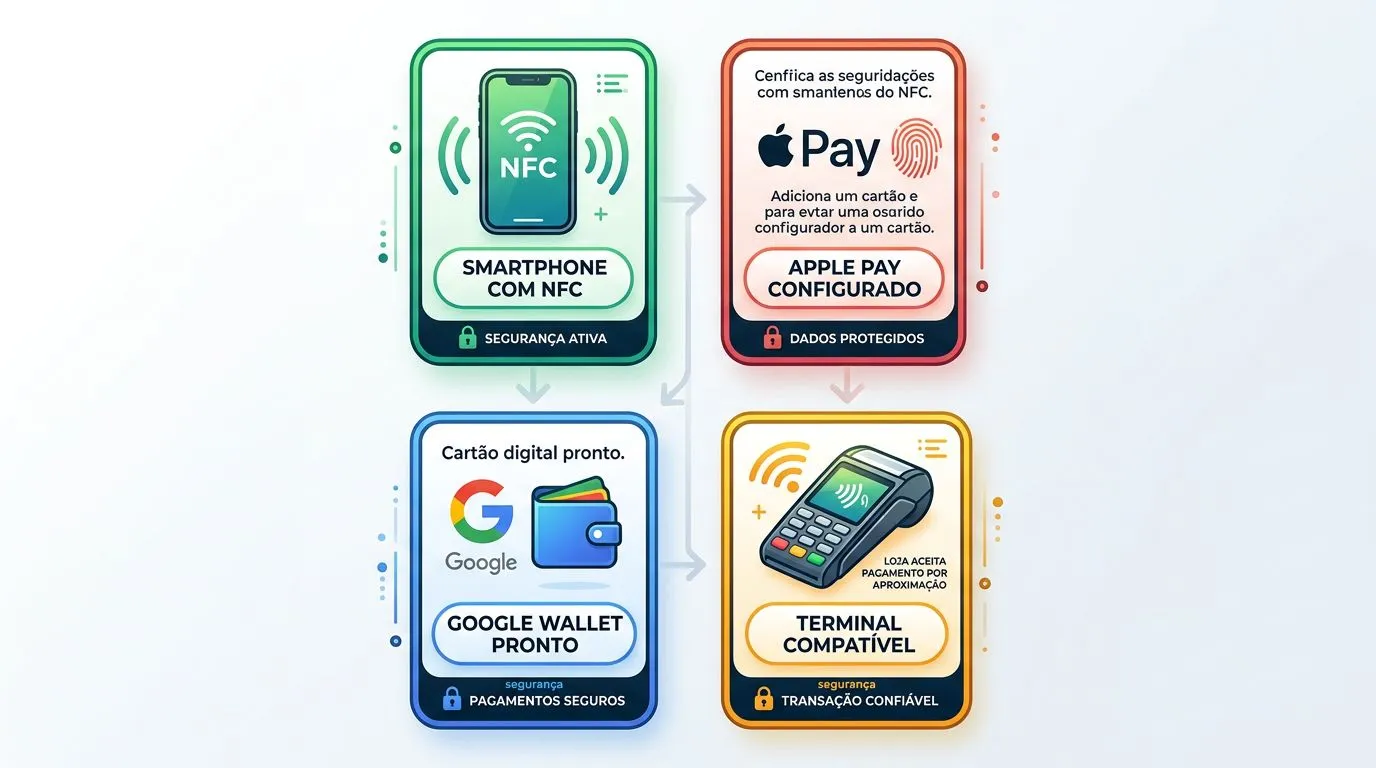
| Scenario | What needs to be in place | What happens in practice | Main limitation |
|---|---|---|---|
| NFC-enabled phone | Active NFC, a configured wallet, and authentication enabled | Tap to pay works on a compatible payment terminal | If NFC is disabled or the device does not support it, contactless payments are unavailable |
| Contactless-enabled payment terminal | Payment terminal with contactless payment enabled | The phone transmits the payment token without physical contact | If the terminal does not accept NFC, the wallet cannot help, and the physical card or another payment method will be needed |
| In-app or online purchase | Merchant integration with Apple Pay or Google Wallet | The user confirms the payment without entering card details for each purchase | If checkout does not offer the wallet, the saved card or another accepted payment method is used |
| Apple Pay and Google Wallet | User authentication and a link to a compatible account or card | The wallet provides a payment identifier, not the actual card details | Security depends on the device’s operating system and the platform’s policies |
Apple Pay and Google Wallet serve similar purposes, but each is tied to its own ecosystem. Apple Pay relies on your Apple Account and iPhone controls, while Google Wallet works with Android and the Google account connected to the device. The payment experience may feel similar, but locking the device, revoking access, and recovering the account work differently on each platform.
What to set up on your phone to reduce the risk if it is lost or stolen
- Set a strong screen lock. On iPhone, use a passcode, Face ID, or Touch ID. On Android, use a password, PIN, or trusted biometric authentication. If the device unlocks easily, any wallet stored on it is more vulnerable.
- Set up Find My and test Lost Mode before you need it. Its real value becomes clear when your phone goes missing and you can mark it as lost from your account without relying on memory or improvisation.
- On iPhone, Lost Mode locks the device and suspends the payment cards and passes used with Apple Pay, as described by the Apple Support. This stops contactless payments even before you change your passwords.
- If your iPhone is running iOS 17.3 or later, turn on Stolen Device Protection. Apple says this feature requires two-factor authentication for your Apple Account, along with a passcode, Face ID, or Touch ID. In practice, it makes it harder for someone to turn off important protections simply because they discovered your device passcode, according to Apple Support.
- After locking the device, check what remains accessible once it reconnects to the network. Apple itself says the device only appears online after it is turned on and connected to Wi-Fi or a cellular network. This wait exists so commands such as locating, locking, and suspending access actually reach the phone instead of remaining pending in your account.
Which security controls depend on the platform, operating system, and account
- A passcode, Face ID, and Touch ID are the first line of defense. They prevent someone from opening your digital wallet and authorizing payments without completing the device's local verification.
- Two-factor authentication for your Apple Account is not an administrative detail. It is part of your security controls. Apple requires it to turn on Stolen Device Protection and for other sensitive actions connected to your iPhone.
- A screen lock, device protection, and account security are different layers. If you confuse the three, you may think you are protected because your phone has a passcode, while remaining exposed if your account is weak or location services are turned off.
- Real protection comes from combining the service, operating system, and your own settings. When one of these pieces is missing, the digital wallet still works, but there are fewer barriers for a thief or anyone who gets hold of the unlocked device.
In practice, the most common mistake is treating Apple Pay or Google Wallet like a separate safe. The services are secure within their platform designs, but your habits still matter. Leaving the screen unlocked, skipping stronger account authentication, or not knowing how to trigger a remote lock can weaken that protection quickly. Good security starts before you pay and continues after a loss, should one happen.
If you use an iPhone, follow this sequence: keep Face ID or Touch ID enabled, confirm that two-factor authentication is active on your Apple Account, turn on Find My, and learn how to use Lost Mode. On Android with Google Wallet, check that NFC is enabled, biometric unlocking is turned on, and the account linked to the phone has an additional authentication factor.
The practical takeaway is simple. A digital wallet isn't automatically high risk, but it isn't invulnerable either. It works best when you understand that payments rely on several layers of protection and that a quick response matters after theft: lock the device, locate it, suspend access, and review the account and linked cards if needed.
Frequently asked questions
Can I use a digital wallet without an internet connection?
Yes. For in-person purchases, authorization can work without an active internet connection because the compatible terminal and payment token handle the transaction. You'll need an internet connection for management actions, such as locating the device or sending lock and suspension commands, because the phone must go online to receive them.
If I switch phones, will my cards stay in my digital wallet?
Generally, no. You'll need to add the cards again on the new device because the wallet is tied to the device and its authentication checks. This matters especially when moving from an iPhone to an Android phone, or the other way around, since recovery also depends on your account and the platform's security controls.
Does a digital wallet replace a physical card for every purchase?
No. It depends on terminal compatibility, NFC support for contactless payments, and, in some cases, whether the app or website supports the payment method.
What happens to my cards in Apple Pay if I mark my iPhone as lost?
The cards and passes in Apple Pay are suspended while the iPhone is in Lost Mode. In practical terms, contactless payments stop working on that device until you recover it and remove Lost Mode through your account.