
How to Set Up an Ergonomic Home Office on a Budget
Um home office ergonômico e econômico começa pelo que você já tem, não pela compra de tudo novo. Quando cadeira, altura da tela, teclado e mouse estão bem ajustados entre si, boa parte do desconforto desaparece. Esta versão do guia é para quem passa horas no computador, mas não aborda estações especializadas, como setups com vários monitores, bancadas de desenho técnico ou espaços adaptados para pessoas com deficiência, que exigem critérios próprios.
Key takeaways
- Adjust the chair so your feet are supported and your knees feel comfortable. If you need more support, use a sturdy footrest right away.
- Keep the top of the screen near eye level, especially when using a laptop, to reduce constant neck flexion.
- Keep the keyboard and mouse close to your body, with your elbows at about 90 degrees, to prevent your shoulders from rising.
- If you raise the seat to correct the screen height, compensate with a footrest instead of letting your legs dangle.
- Persistent pain, tingling, or limited movement lasting more than a few days calls for a professional evaluation, not just a posture adjustment.
Chair and Desk Posture
A base é sentar com estabilidade, manter os pés apoiados e dar suporte à coluna, sem tentar imitar uma postura militar rígida. A NR-17, referência brasileira em ergonomia no trabalho, e as orientações da Fundacentro concordam nos pontos essenciais: o corpo precisa de apoio contínuo, objetos ao alcance curto e pouca tensão sustentada por longos períodos.
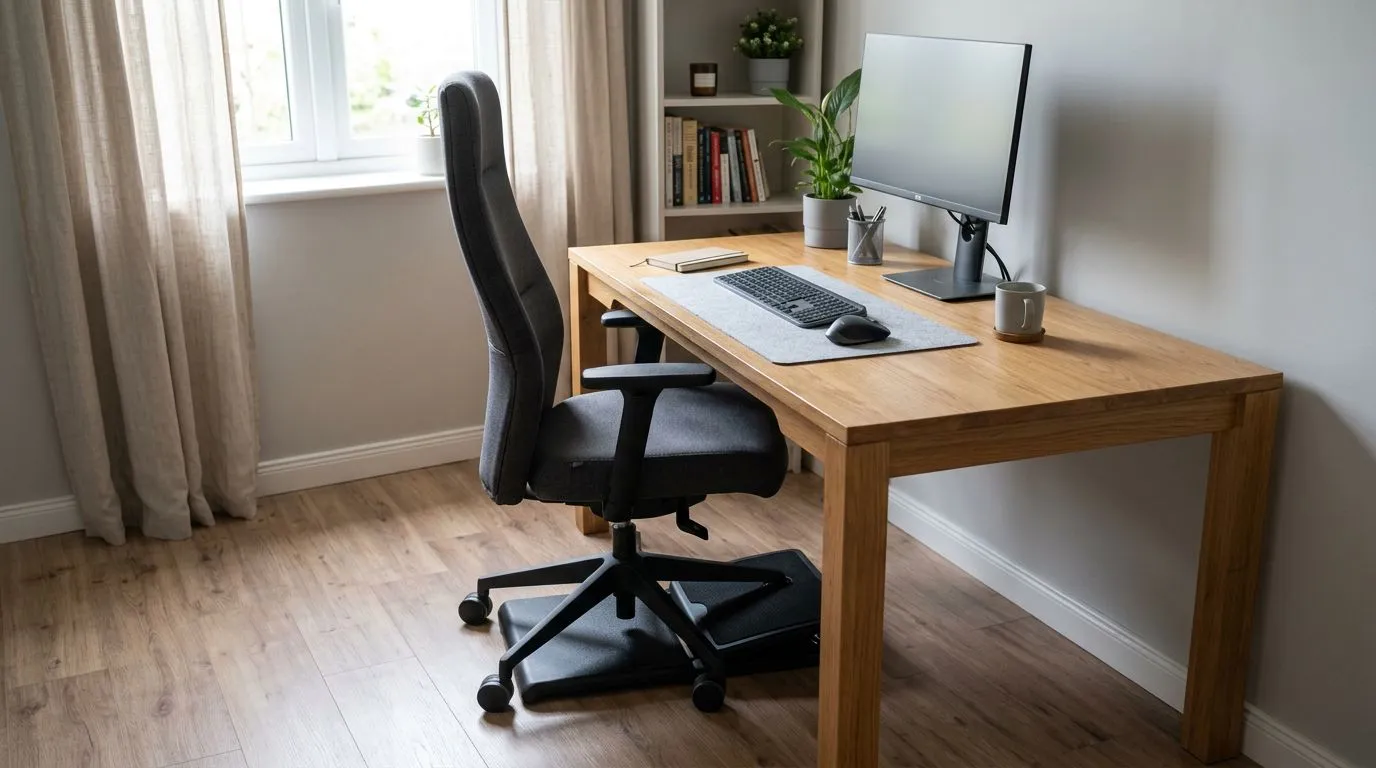
- Adjust the seat height so your feet rest on the floor. If they do not, use a sturdy footrest, because letting your legs dangle increases pressure under your thighs and usually makes fatigue set in faster.
- Keep your knees and hips in a comfortable position, without letting the backs of your knees touch the edge of the seat. A seat that is too high compresses circulation, while one that is too low causes your torso to collapse forward.
- Use the backrest to support your spine. If the chair is basic, add a small lumbar cushion. The goal is to keep your lower back supported for hours.
- Arrange the desk so your forearms stay close to your body and your shoulders remain relaxed. If you have to reach your arms forward to type, the desk or chair is not adjusted correctly.
- Watch for practical signs throughout the day, such as leaning your torso forward, raised shoulders, sliding down in the chair, or constantly resting your weight on the edge of the desk. These signs often appear before the pain becomes obvious.
Screen Height and Support: Reference Numbers That Work
A orientação mais útil é deixar o topo da tela próximo à altura dos olhos, sem transformar isso numa regra absoluta. Assim, você tende a baixar menos a cabeça durante longos períodos, o que costuma aliviar a sobrecarga no pescoço e nos ombros. É exatamente essa a lógica das orientações de ergonomia para o uso do computador da Mayo Clinic e da Cleveland Clinic.
Na prática, procure um ajuste suficiente, não uma configuração perfeita. Se você usa o notebook diretamente sobre a mesa, a tela quase sempre fica baixa demais, e o pescoço compensa isso permanecendo flexionado. Elevar o aparelho com livros firmes ou um suporte simples já ajuda bastante, desde que o teclado e o mouse fiquem separados.
A altura do assento afeta todo o restante. Ao elevar a cadeira para alinhar melhor a tela, seus pés podem deixar de tocar o chão. É aí que entra o apoio para os pés. Se a mesa for baixa demais, os cotovelos tendem a ficar abaixo da posição ideal e os ombros avançam. Nesse caso, a solução mais barata costuma ser baixar um pouco o assento ou trocar de cadeira, não elevar a mesa inteira.
Ao digitar ou usar o mouse, seus braços devem ficar aproximadamente em um ângulo de 90 graus, com os cotovelos próximos ao tronco. Você não precisa medir isso com um esquadro. Basta perceber se o ombro não está subindo para alcançar a superfície e se o antebraço não fica suspenso o tempo todo. Se a parte de trás do pescoço dói no fim do dia, a tela provavelmente está baixa demais ou distante demais.
Quando os móveis não ajudam, uma adaptação bem feita é melhor do que esperar pela cadeira perfeita. Um livro firme, uma caixa estável ou um suporte simples pode resolver o problema da altura em muitos casos, desde que não deixe o conjunto instável. A regra prática é direta: se o ajuste diminui o ângulo da cabeça e permite apoiar os pés, ele já cumpre sua função principal.
Keyboard and mouse: distance, height, and positioning
| Item | Ideal position | Sign that an adjustment is needed | Practical adjustment |
|---|---|---|---|
| Keyboard | Centered in relation to your body, close to the edge of the desk, without forcing you to reach forward with your shoulders. | Your elbows flare too far out or your hands are too far from your torso. | Pull the keyboard closer and remove any objects taking up the support area. |
| Mouse | Next to the keyboard, at the same height, with room for your forearm to rest. | Your shoulder lifts to reach the mouse or your wrist stays bent for too long. | Move the mouse closer and, if necessary, reduce the width of your work area. |
| Combined use | The keyboard and mouse let you switch between them without shifting your torso too much. | Your body twists, your neck tilts, or your arm frequently crosses in front of your body. | Reorganize the desk surface to keep both peripherals within easy reach. |
O erro mais comum é tratar teclado e mouse como acessórios independentes. Na prática, os dois definem a distância real de trabalho. Se o teclado fica longe demais, seu corpo avança. Se o mouse está muito para o lado, o ombro tensiona. A ergonomia melhora quando ambos ficam na mesma superfície, sem nada entre você e a borda da mesa.
Para quem passa muito tempo no notebook, teclado e mouse externos não são luxo. Eles permitem separar a altura da tela da altura de digitação, tornando o ajuste adequado possível sem sacrificar o pescoço ou os punhos. A Herman Miller, em seus materiais sobre ergonomia, e fabricantes como a Ergotron reforçam esse princípio ao abordar a postura neutra e a importância de manter os itens usados com frequência a uma curta distância.
Se você alterna entre longos períodos digitando e usando o mouse, preste atenção a um detalhe simples: o punho não deve ficar dobrado para cima, para baixo ou para os lados por muito tempo. Um punho neutro costuma gerar menos fadiga. Quando ele se desvia demais, a solução prática não é se esforçar para aguentar. Reposicione os periféricos e diminua a distância até eles.
Items that are truly worth the investment
- A footrest when the chair is too high and your feet cannot rest firmly on the floor.
- A laptop stand or external monitor when the screen is too low and forces your neck forward.
- A chair with useful basic adjustments, such as height and a functional backrest, rather than choosing one based on appearance alone.
- An external keyboard and mouse for anyone who spends many hours on a laptop, because they help separate the screen from the typing area.
- Buy the item that solves the most uncomfortable problem first, before purchasing accessories or decorative items.
Quando o dinheiro está curto, a ordem das compras importa mais do que o preço de cada item. Um suporte simples que eleva a tela costuma trazer mais benefício prático do que trocar a cadeira por um modelo caro e continuar usando o notebook numa altura baixa. O contrário também pode acontecer: uma cadeira ruim pode anular parte da vantagem de um monitor bem posicionado.
É aqui que vale priorizar o impacto imediato. O item que corrige a posição do pescoço e dos ombros geralmente traz uma melhora mais perceptível do que aquele que apenas ajusta o conforto dos punhos ou deixa o espaço mais bonito. Para quem estuda ou trabalha por muitas horas, essa prioridade pesa no fim do dia.
Também existe um ponto de referência importante para quem quer comprar melhor sem pagar apenas pelo nome. A NBR 9050, embora seja uma norma de acessibilidade e não uma norma de ergonomia para escritórios, reforça a ideia de que alcance, altura e uso confortável do espaço devem partir do corpo humano real, não de um móvel idealizado. Quando um item reduz os alcances desconfortáveis e facilita o apoio, ele está cumprindo sua função.
Common mistakes that worsen pain and fatigue
- Working with the monitor too low, forcing your neck to stay bent forward.
- Using a laptop for long periods without raising the screen or using an external keyboard and mouse.
- Keeping the keyboard and mouse too far from your body, forcing your shoulders, elbows, and wrists to work harder than necessary.
- Ignoring breaks and recurring signs of discomfort, such as stiffness, tingling, or early fatigue.
- Fix one item at a time, starting with whatever puts the most strain on your neck and shoulders.
O maior erro é tentar compensar uma estação ruim mantendo uma postura perfeita o tempo inteiro. Ninguém sustenta isso por horas. Se a tela está baixa, o corpo se inclina para a frente. Se o mouse fica longe, o ombro sobe. Se o assento está na altura errada, a lombar reclama. Ajuste o ambiente antes de exigir do corpo uma disciplina impossível.
Outro erro frequente é comprar acessórios em sequência sem medir o problema. Muita gente compra apoio para os punhos, uma cadeira nova e uma luminária, mas continua usando o notebook baixo demais. A ordem correta quase sempre começa pela tela, passa pelos periféricos e só depois chega à cadeira e ao apoio para os pés, conforme as limitações reais do espaço.
As pausas também contam, mesmo quando a estação está bem ajustada. Levantar, mudar de posição e descansar os olhos interrompe a tensão contínua. Você não precisa transformar isso num ritual complicado. O que realmente ajuda é evitar ficar na mesma posição por longos períodos.
When Pain Goes Beyond an Adjustment and Calls for Professional Evaluation
Persistent pain, tingling, weakness, or restricted movement shouldn't be written off as ordinary chair trouble. If the discomfort sticks around after you've adjusted the monitor, seat height, keyboard, and mouse, it's time to see a physical therapist, occupational medicine specialist, or another qualified professional.
The Cleveland Clinic and Mayo Clinic recommend having symptoms such as tingling and weakness evaluated because they can signal something beyond poor posture. That doesn't mean you should panic, but continuing to guess at the cause isn't a smart bet. Start recording the symptom pattern as soon as you can. Knowing what makes it better or worse gives you and your clinician a much clearer picture.
Seek urgent care for sudden, severe pain, major loss of strength, numbness that doesn't improve, a deformity after a fall or other trauma, or pain paired with warning signs such as a fever or significant malaise. Those symptoms may have little to do with ergonomics, and waiting for the problem to “go away on its own” can carry a serious cost.
If pain shows up almost every time you work and eases when you step away from the computer, your workstation is giving you a useful clue. Pay attention to when the pain starts, where you feel it, and which task aggravates it. A short log like this is far more useful than swapping out equipment at random.
For an ergonomic home office on a budget, start with the monitor, then adjust the peripherals, and consider furniture last. If your body is already complaining, one expensive purchase probably won't solve everything. Make the changes you can today, test them for a few days, and use what you learn to choose the next adjustment.
Frequently Asked Questions
How do I know if my chair is at the right height?
Your chair is set correctly when your feet rest firmly on the floor, your knees and hips feel comfortable, and the seat supports your pelvis. Notice the details: if the front edge presses into the backs of your knees, or you have to lean forward to reach the desk, the height or position still needs work. A seat that's too high or too low can disrupt everything else.
Can a laptop alone work for an ergonomic home office?
A laptop can work for a short session, but over a full workday its screen is usually too low and may leave your neck working overtime. Raise the screen with a simple stand or a stack of sturdy books. If you can, add an external keyboard and mouse so you can set the screen and typing area at separate heights. Without that separation, your neck and shoulders have to make up the difference.
Do I need to buy an expensive chair to improve ergonomics?
Not necessarily. In many cases, raising or lowering the chair, adding a footrest, and arranging the monitor, keyboard, and mouse more carefully can help more than replacing the entire desk or chair. The article also notes that a basic monitor stand may deliver more value than making a new chair your first purchase.
What is the first adjustment I should make if I have neck pain?
Adjust the monitor height first. If the screen sits too low, you'll spend the day looking down. If the back of your neck still hurts, check the keyboard and mouse next. They should be close enough that you aren't lifting your shoulders or leaning your torso toward the desk. The sequence matters, so make one adjustment at a time instead of replacing equipment blindly.
How long can I work without getting up from my chair?
No single break schedule works for everyone, but taking short breaks regularly can help limit strain. If pain starts early in the day, sitting time isn't the only factor. The monitor, chair, keyboard, or mouse could also be set at the wrong height or placed too far away. If the discomfort continues, review the workstation before adding more hours at the desk.